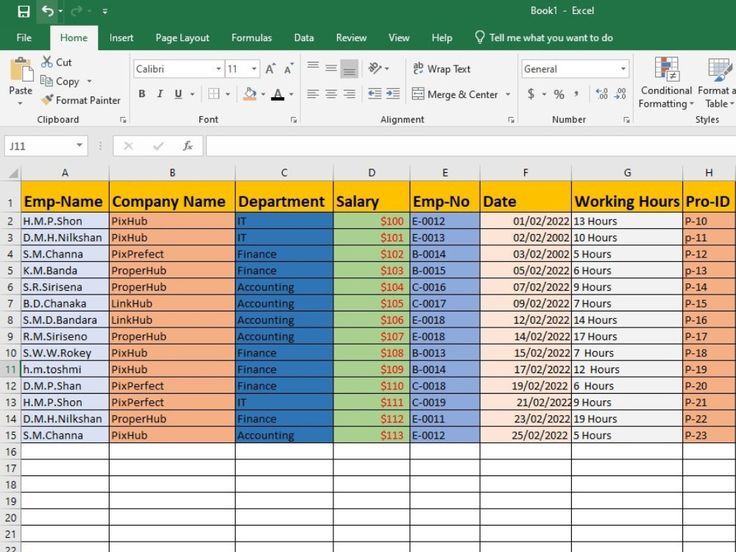
Repetitive data entry tasks — copying information from one system to another, formatting recurring reports, entering the same categories of data day after day — consume enormous amounts of time that could often be spent on higher-value work. Automation has become increasingly accessible, even for people without a technical or programming background, making it possible to eliminate or significantly reduce many of these repetitive tasks. Understanding which tools and techniques can automate your data entry work isn’t just about saving time; it’s about positioning yourself as a more efficient, valuable professional in a field that’s rapidly evolving.
This guide covers the most practical, accessible ways to automate repetitive data entry tasks, from simple spreadsheet features to more advanced automation platforms.
Start With Built-In Spreadsheet Automation Features
Before turning to external tools, it’s worth maximizing the automation features already built into Excel and Google Sheets. Excel’s Flash Fill, triggered with Ctrl + E, automatically recognizes patterns in your data entry and completes the rest of a column based on just one or two examples — extremely useful for tasks like extracting first names from full names or reformatting phone numbers consistently.
Both Excel and Google Sheets also support formulas that can automate calculations and text manipulation that would otherwise require manual entry — using CONCATENATE or TEXTJOIN to automatically combine data from multiple columns, or IF statements to automatically categorize data based on defined criteria, eliminating the need to manually type these determinations for every row.
Use Macros for Repetitive Multi-Step Tasks
For tasks that involve a consistent, repeatable series of steps — formatting a report the same way every week, cleaning data using the same sequence of operations each time — Excel’s macro feature (accessed through the Developer tab) allows you to record a series of actions once, then replay them automatically with a single click in the future.
Creating a macro doesn’t require programming knowledge for basic use cases: simply turn on the macro recorder, perform the steps you want to automate exactly as you normally would, then stop recording. The next time you need to perform that same sequence of steps, running the saved macro will execute them automatically in a fraction of the time. For more advanced automation, macros can also be edited or written directly using VBA (Visual Basic for Applications), Excel’s built-in programming language, allowing for more sophisticated, customized automation.
Leverage Google Apps Script for Google Sheets Automation
Google Sheets offers a similar, if slightly more technical, automation capability through Google Apps Script, a JavaScript-based scripting language built directly into Google’s suite of tools. Apps Script can automate tasks like automatically formatting new data as it’s entered, sending email notifications when specific conditions are met within a spreadsheet, or automatically pulling data from external sources into your sheet on a scheduled basis.
While Apps Script does require some basic coding familiarity, there are extensive free tutorials and pre-written script templates available online that make it accessible even to those without a formal programming background, particularly for straightforward, common automation needs.
Automate Data Collection to Reduce Entry at the Source
One of the most effective automation strategies isn’t about speeding up data entry itself, but eliminating the need for manual entry altogether by automating how data is collected in the first place. Tools like Google Forms, Microsoft Forms, or Typeform can be connected directly to a spreadsheet or database, automatically populating new entries as soon as a form is submitted, rather than requiring someone to manually transcribe information from an email or paper form afterward.
This “automate at the source” approach is often more impactful than automating the entry process itself, since it removes an entire manual step from the workflow rather than simply making that step faster.
Use Zapier or Make to Connect Different Tools Automatically
For data entry tasks that involve transferring information between different software platforms — for example, automatically adding new CRM contacts to an email marketing list, or creating a new project management task whenever a specific type of email arrives — automation platforms like Zapier and Make (formerly Integromat) allow you to build these connections without any coding knowledge.
These platforms work by creating “automations” (often called Zaps in Zapier or Scenarios in Make) that trigger an action in one app based on an event in another. For example, you could set up an automation that automatically adds a new row to a Google Sheet every time a new form response is submitted, a new email arrives matching specific criteria, or a new deal is created in a CRM system — eliminating what would otherwise be manual, repetitive data entry work.
Use OCR and AI-Powered Extraction for Document-Based Entry
For data entry tasks involving physical documents or scanned files, OCR (optical character recognition) tools combined with AI-powered extraction — such as ABBYY FineReader, Nanonets, or Rossum — can automatically extract and organize relevant data from invoices, receipts, forms, and other documents, significantly reducing the manual typing required to digitize this information. These tools have become increasingly accurate and accessible, making them a practical automation option even for smaller businesses or individual freelancers working with recurring document types.
Set Up Templates for Recurring Data Structures
While not automation in the strictest technical sense, building and consistently reusing well-structured templates for recurring data entry tasks — a standardized invoice format, a consistent customer intake spreadsheet, a recurring weekly report structure — significantly reduces the time spent recreating formatting and structure from scratch each time. Combined with features like data validation and pre-built formulas, a well-designed template can make each new round of data entry substantially faster and more consistent than starting fresh each time.
Use Power Automate for Microsoft Ecosystem Automation
For businesses and professionals working primarily within the Microsoft ecosystem, Power Automate offers similar functionality to Zapier, specifically designed to integrate smoothly with Excel, Outlook, SharePoint, Microsoft Forms, and other Microsoft 365 tools. Common automations include automatically saving email attachments to a specific folder, adding new Microsoft Forms responses directly to an Excel spreadsheet, or sending automatic notifications when a spreadsheet is updated with new data meeting specific criteria.
Identify Which Tasks Are Worth Automating
Not every repetitive task is worth the time investment required to automate it. Generally, automation makes the most sense for tasks that are performed frequently (daily or weekly), involve a consistent, predictable structure, and consume a meaningful amount of time in their current manual form. A task performed only once or twice, or one that involves significant variability and judgment calls each time, may not be worth the setup time required to automate effectively.
A useful approach is to track how much time you spend on various recurring data entry tasks over a week or two, then prioritize automating the ones that consume the most cumulative time relative to how straightforward they would be to automate.
Balance Automation With Quality Control
While automation can dramatically reduce the time spent on repetitive data entry, it’s important to maintain a quality control process even for automated workflows. Periodically review automated processes to ensure they’re still functioning correctly, particularly after any changes to the source data format or the tools involved. Automation errors, when they occur, can sometimes propagate more errors more quickly than manual entry mistakes would, simply because automated processes run faster and without the natural pause for reflection that manual entry involves.
Positioning Yourself as an Automation-Savvy Data Entry Professional
As automation becomes increasingly central to efficient data entry work, professionals who understand how to set up, manage, and troubleshoot these tools position themselves as significantly more valuable than those who rely solely on manual entry speed. Clients and employers increasingly value data entry professionals who can not only handle the data itself but also identify and implement opportunities to streamline and automate recurring processes, adding strategic value beyond the basic task of typing data into a system.
Getting Started With Your First Automation Project
If automation feels overwhelming, start small with a single, well-understood task rather than attempting to automate your entire workflow at once. Pick one recurring task that consumes noticeable time each week — perhaps transferring form responses into a spreadsheet, or reformatting a recurring weekly report — and focus on automating just that single process using the simplest tool capable of handling it, whether that’s an Excel macro, a Zapier automation, or a basic Google Forms and Sheets connection.
Once you’ve successfully automated one task and experienced the time savings firsthand, you’ll have both the practical experience and the confidence to tackle progressively more complex automation projects. This incremental approach tends to be far more sustainable and successful than attempting to overhaul an entire data entry workflow all at once, which often leads to frustration and abandoned automation projects that never deliver their intended value.
Final Thoughts
Automating repetitive data entry tasks isn’t about eliminating the need for human involvement — it’s about redirecting your time and attention toward the parts of the work that genuinely require human judgment, oversight, and problem-solving. From built-in spreadsheet features like Flash Fill and macros to more advanced platforms like Zapier, Power Automate, and AI-powered OCR tools, there are accessible automation options available at nearly every skill level. Investing time in learning and implementing these tools pays off not just in time saved, but in your overall value and competitiveness as a data entry professional in an increasingly automation-driven field.